
Conference Session
Local development environments for Drupal with DDEV
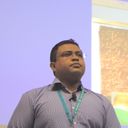
Mauricio Dinarte
Senior Software Engineer | Drupal Migrations Expert
A local development environment is the first thing every Drupal developer sets up and the last thing most want to think about. DDEV takes the friction out of it: multiple PHP versions, database servers, debugging and profiling tools, and hosting integrations, all configured by editing a file or two. This session is a working tour of what DDEV does day to day, from spinning up Drupal 11 to importing a Drupal 7 site for migration, so teams can standardize on one setup that works the same across operating systems and across every developer on the team.
Session Description
Every Drupal project starts with the same question: how do you run it locally? DDEV is the answer more and more teams are settling on, and this session is a hands-on demonstration of why.
Mauricio Dinarte (Senior Software Engineer) walks through what a Drupal developer actually needs from a local environment, running multiple major versions side by side, switching PHP and database versions, capturing email, profiling with Xdebug and Xhprof, and connecting to hosting providers, then shows DDEV handling each one live. He builds a fresh Drupal 11 site from scratch with Composer and Drush, imports a Drupal 7 database and files for a migration, and connects one DDEV instance to another so the two run at the same time. This session was sponsored by Agaric, the cooperative Mauricio collaborates with.
Along the way he covers the small things that make DDEV pleasant: how the commands wrap what happens inside the web container, how add-ons extend it, and where the documentation earns its reputation. The internet gods do not fully cooperate, so a couple of steps run on imagination, but the workflow comes through clearly.
What You Will Learn
- What a Drupal developer needs from a local environment, as a soloist and as part of a team
- How to build a Drupal 11 site from scratch with DDEV, Composer, and Drush
- How to import a Drupal 7 database and files and run a migration into Drupal 10
- How to connect one DDEV instance to another and run multiple projects at once
- How to set up Xdebug and Xhprof for debugging and profiling with a single command
- How DDEV add-ons and hosting-provider integrations extend the base setup
Transcript
[00:00:02] Good morning everybody, thank you for being here. This is "Local development environments for Drupal with DDEV." My name is Mauricio Dinarte, my pronouns are he and him, and I go by dinarroz online. I speak English, Spanish, French, and Portuguese to different levels of proficiency, so if you speak any of those, please talk to me. I might or might not be able to respond in the same language depending on the topic.
[00:00:31] My email address is up there. I run a website called understanddrupal.com, and the idea is to expand that. And that's my Drupal.org profile. I'm from Nicaragua, a beautiful tropical country in Central America known as the land of lakes and volcanoes. I collaborate with Agaric, a Boston-based cooperative, though we're distributed and there are members in Europe too. On the site I write mostly in English but translate to Spanish and French where possible, and hopefully soon to Portuguese. I'd also like to thank Pantheon for supporting me in being here today.
[00:01:21] So we're here to talk about DDEV and local development environments. As a Drupal developer, what do I want to be able to develop locally? For one, I want to run multiple projects on different major versions of Drupal: 7, 8, 9, 10, 11. Believe it or not, even recently we've been asked to migrate sites from Drupal 6 to Drupal 11, or Drupal 5 to newer versions. I don't know why you'd be running those versions today, but it is what it is, so DDEV makes it easier to run multiple versions at the same time.
[00:02:02] I also need to support multiple versions of PHP, database servers, and web servers. You change a couple of files in the configuration and you get what you need. I need access to debugging and profiling tools, which we'll be demoing today, Xdebug and Xhprof. I need to support other services that production might be using, so I can replicate the production environment as closely as possible: caching services or search providers. And I need to support multiple build and testing tools, Composer, Yarn, Selenium, all supported either natively by DDEV or via add-ons.
[00:02:51] Related to Drupal specifically, there are debugging tools: how to get access to the database and administer it, how to capture email if I'm testing an email feature. Even as a solo developer I want all this in my local setup. And if I'm part of a team, I want a homogeneous environment across operating systems and across team members.
[00:03:16] Everybody has different preferences in terms of IDEs. Today we'll be showing PhpStorm and VS Code, but I have friends who develop exclusively in Vim. I can barely exit Vim, and they develop Drupal in it, so it's amazing, and you need to respect those preferences. DDEV can work with that. It's very easy to install, and the support is fantastic. I think that's what makes DDEV excel over some alternatives.
[00:03:55] DDEV is a Docker-based open source tool for local development environments, not only for Drupal. It supports multiple programming languages, PHP, Node, Python, and multiple CMSs. Last time I checked there were 24 different frameworks supported, including Drupal. The community support is outstanding: they have support in Discord for multiple communities, or if you're specifically about Drupal, in the #ddev channel in the Drupal Slack.
[00:04:32] What I like about DDEV is that you don't need to be an expert in Docker. It hides the complexity of Docker, but if you're a power user you get access to extensions and can do anything you want under the hood. There are multiple providers supported. On macOS there are open source and closed-source alternatives, free and paid, so depending on your operating system there are multiple ways to install DDEV. There are also fully web-based versions like GitPod or GitHub Codespaces, so you don't even need it on your computer.
[00:05:25] Actually, in the contribution day tomorrow, some people will be using GitPod, so you don't need anything preconfigured to come and contribute to Drupal. I've seen people use this to test something on an iPad or a tablet. So, this is a live demo. Of course nothing can go wrong. Let's get it started.
[00:05:54] This is the homepage of DDEV. The most important link, after supporting DDEV, is the documentation. There are 24 supported frameworks, and we're going to focus on Drupal. My goal is that you see how good the DDEV documentation is, and how it makes it easy for other people to work with their specific projects. I'll mostly be copying and pasting, with some description of what's going on under the hood.
[00:06:36] I'll switch to my terminal, create a directory, let's say "barcelona," switch to it, and from here on I'll mostly be copying and pasting commands. When I have more time for demos like this, I like to initialize a git repository and make a commit after every step, so you can see the difference of what's going on under the hood. If you have time, after every step do a git add and git commit and check the differences.
[00:07:25] The first command is ddev config, where we specify the project name, in this case Drupal, that we want PHP 8.3, and a Composer template that will put Drupal in a web folder for the docroot. Then I run ddev start, which starts the container. So far I don't have Drupal yet: if I do a ddev launch I see nothing, because DDEV is running but I don't have the Drupal code. How do I get it? With Composer.
[00:08:07] So we run the composer create template, and this grabs all the code for Drupal 11. Hopefully the Wi-Fi is good enough; if not, I'll have to find a different way to entertain you today. While that's running, the next step is installing Drush, because as professional Drupal developers this is a very handy tool. It lets us interact with the website via the command line and automate a lot of things.
[00:08:53] After this process, if I run ddev launch again I won't get the same error as before; instead I'll get an installation screen. But instead of installing Drupal manually, I'll do it using Drush, which is the next command. Now that we have Drupal itself, we'll update the configuration again. This is where those git diffs would highlight what's happening, but for the sake of brevity let's just run these commands as the guide suggests.
[00:09:46] Out of the box there are different versions of Drupal supported; some require Composer, some don't. As an aside, sometimes we get projects that don't have DDEV configured, but I'm so used to DDEV that it's easier and faster for me to run ddev config, ddev start, update the PHP or database version, and get an environment I'm familiar with. So, running those commands, I have a site we'll use down the road.
[00:10:37] The first thing I want to highlight is that just by following this set of instructions we got a fully working Drupal environment, and under the hood we have Drush, we have Composer, and if you were working with a hosting provider like Pantheon you'd have Terminus to interact with it, all installed inside the web container.
[00:11:12] Now let's say you already have a project, or a team, and you happen to be working on a migration, like I do basically every day for the last seven years. A little highlight: if you want to learn about migrations, I've written one and a half books. This one is the original, "31 Days of Migrations," and this one is the second, "Migrating your data from Drupal 7 to Drupal 10." They come with repositories, and that's what I'm going to demo now.
[00:11:51] The repository for the second book is still in progress, but you can already clone it. It uses DDEV under the hood, because it's relatively easy to set up. For the sake of simplicity I've already set up some things, because I want to focus on DDEV itself. This project is about migrating a Drupal 7 site to Drupal 10. At the moment I have the Drupal 7 project running, the code is there, but I don't have a database, which is why you see the "no database available" server message.
[00:12:34] So how do I get a database? There's a command called import-db. You specify the file flag and the path to the SQL file, and with just that, if I come back to the site and refresh, I'll have a working site. There's a little to review: if I go to node 23, because that's a nice number, there's supposed to be an image here but there is none. Why? Even though I imported a database, my files are still missing.
[00:13:15] Conveniently, DDEV has another command for importing files, import-files. You specify the source. All of these are assets that come with the example repository: there are asset folders with the Drupal 7 database and the Drupal 7 files. So you run a couple of commands and you have a fully working website. I execute this command, refresh, and now I have a beautiful image that was created using Devel Generate.
[00:13:56] One caveat with import-files: Drupal expects public files to be in sites/default/files, so your compressed files need to mimic that hierarchy. Otherwise, just copy those two commands and you get your database and your files. If you need to make database dumps as a backup, there are multiple options. You have Drush, so you can say ddev drush and there's a sql:dump command. There's also a snapshot command, which creates a copy of everything in the database container. I highlight this because it's possible to have multiple databases in the same instance, and this command backs up all of them.
[00:15:06] One thing I highly recommend: for every command you run, do two things. First, run it with the --help flag so you can see all the options. If you want to restore a snapshot you say ddev snapshot restore, or name a snapshot something meaningful with the --name flag. Second, run the same command but leave the last part out, so just ddev, and you get a list of everything DDEV currently supports. This list varies depending on the type of project and the add-ons you have installed.
[00:16:01] Another thing to highlight: some of these commands are mostly wrappers for things that happen inside the web container. An example is Composer. From the very first example we used ddev composer and then ddev drush. You don't need to do that if you don't want to. Under the hood you can connect to the web container, type ddev ssh, and inside you have Composer, Drush, and a lot of other commands.
[00:16:59] Another option is ddev exec, which executes basically anything you pass inside the web container. If I type ddev exec pwd it executes that inside the web container. I can do the same for Drush or Composer. ddev exec also has an alias, the dot, so ddev . drush is basically the same thing. Many different ways to do the same action. I highlight this mostly because if you want to automate processes, some people integrate DDEV inside their CI implementations, and these are the different ways to execute commands inside the web container.
[00:18:04] Back to migrations. This is my Drupal 7 site, with the database and files imported, and this is my Drupal 10 site, the target environment. I'll run a migration: ddev drush migrate:import. So this is an example, but literally you copy and paste a few commands from a guide and you get not only a fully working Drupal 7 site but also a fully working migrated Drupal 10 site.
[00:18:51] I want to show something else, which is how you connect one DDEV instance to another and how you configure a DDEV instance. First, the settings.ddev.php file. In here is the connection to the default database, but I created a second connection for my Drupal 7 host. The pattern to connect from one instance to another, in terms of the host definition, is ddev- the name of the project, in this case migrate-drupal-7, and then - the container you want to connect to, in this case web.
[00:19:48] There's a migration for files, upgrade_d7_file, and this one needs to connect to the web container to fetch public files. Again, the pattern is ddev- the project name - the container, so web. That's how you connect from one DDEV instance to another, and an example of running multiple projects at the same time.
[00:20:20] Another thing to highlight is this important configuration file. When you run ddev config you get a .ddev folder, and inside it a config.yaml file. Remember I said you can change your PHP version? You do it here. You can change the version of MariaDB, and you have control over Composer, some debugging configuration, and which web server you want to use. If you scroll down, for PHP you can go all the way back to 5.6 out of the box, and there are even plugins to go further. For the database there are different versions of MySQL or MariaDB working out of the box.
[00:21:14] You can have custom DNS settings. Say for some reason you need your local environment to have a specific domain; you specify all of that in the additional fully qualified domain names section. So we have a running Drupal 7 site, a running Drupal 10 site, and a way to connect between the two.
[00:21:47] Now let's go back to the first example and execute some commands to interact with the website. First I'll get myself a login link, and then I'll install a theme, a module, and do some configuration directly from the command line. Gin, a very popular administration theme, requires a module, so this is a good example of working with both at the same time.
[00:22:28] For the most part, if you want to run a Composer command, you only need to prefix it with ddev and it runs as expected. Now, to install the theme: ddev drush theme:enable gin. If I refresh, I'm still using Claro, the default administration theme, so I'll run ddev drush config:set system.theme admin gin. Under the hood this updates the configuration of my website to use Gin instead of Claro as the administration theme.
[00:23:31] This is another example where knowing other Drupal APIs and being able to use Drush helps. Via Drush I updated my site configuration; if I'm using version control and export my configuration, I can see which file changed and learn from that. That's another way to learn about configuration management: have it under source control, make a change either via the UI or the command line, export, and see the differences.
[00:24:03] So I enabled a theme and set it as my administration theme. Gin actually requires an extra module to be available on the front end too. It's documented on the module page, but for simplicity I'll just enable the module, refresh, and I'll have Gin on the front end as well. None of this is new if you're familiar with Drush: you know how to enable modules, make configuration changes, run cron. And with Composer, just prefix the command with ddev and for the most part that's all you need.
[00:25:01] Now let's do even more. I want to check my database. When I work with migrations, I constantly run database queries against my Drupal 7 site to verify how the source data is presented, and sometimes the same in Drupal 10. There are multiple ways. The documentation covers how to connect from the command line, from IDEs, and from external GUIs, so we'll do all three.
[00:25:49] If I just want a SQL CLI, either ddev mysql and that's it, I can say "show tables" and start running queries. If you're using PostgreSQL, instead of ddev mysql you type ddev psql. Now, you might have a client you're familiar with and want to use, and DDEV won't force you to use only its built-in tools.
[00:26:24] If you type ddev describe you get information about all the services configured for this project and how to connect to them from inside the Docker containers and from your host machine. In this case my DB container: I can connect via localhost and a specific port. Say I'm using PhpStorm, which has a built-in database tool. I add a data source for MariaDB, use the port, and by default the credentials are db, db, db. Please don't hack me. Now I can do "show tables" and I'm using my choice of database client.
[00:27:20] There are multiple GUI options, like phpMyAdmin, Adminer, and some specific to certain operating systems. For now I'll demo phpMyAdmin. I already did it in advance, because it downloads the whole internet and I didn't want to lose time. If you have a project, you run ddev get to install an add-on, then ddev restart, and after those two steps you have a new command, ddev phpmyadmin. Oh, it's not installed. Let's give it some time and have it restart, and we should see a nice phpMyAdmin screen.
[00:28:45] Interesting. Maybe I'm not able to connect to the internet in the end. Well, let's imagine we got a beautiful phpMyAdmin screen there. Two out of three for connecting to the database, not so bad.
[00:29:06] Now let's say we want to capture email, because we don't want to spam our production users with new features we're just testing. That one comes available out of the box, so I don't need to download the internet, and it uses a service called Mailpit. I type ddev, see my options, and there it is: ddev mailpit gives you an interface that captures emails. Does anybody know how to force an email to be sent from Drupal? Contact forms, forgot password. Let's try creating a new user, "hello Barcelona," and notify the user that a new account is being created.
[00:30:19] Now if I come here I get a new email. It wasn't sent to the internet, it was captured by Mailpit, and I can see the content, check the headers, and see the raw plain-text version. This is out of the box, you don't need an add-on. One caveat: Mailpit out of the box captures anything sent by the native mail function in PHP. If you're using SMTP or Symfony Mailer, or a module that bypasses that, it won't be captured out of the box.
[00:31:03] But DDEV has you covered. If you go to the settings.ddev.php file, you'll see it has out-of-the-box configuration for overriding Symfony Mailer so it redirects to catching emails locally. Just be mindful that if you're using SMTP, you want to make sure this is configured and tested before you send a million emails to your whole database.
[00:31:41] So we've got checking emails and database GUIs. Now let's talk about add-ons. Last time I checked there were 24 add-ons: if you type ddev get --list you get 24. If you type ddev get --list --all you get some that are not official, 117. One I want to highlight is one for development of Drupal core, drupal-core-dev on GitHub. It does many things, including making it easy to run PHPUnit tests and Nightwatch tests. So beyond what's officially supported, there's a big community behind DDEV, not only for Drupal but for other CMSs and frameworks.
[00:33:07] All right, let's set up some debugging tools now. I'll show you probably the easiest way ever to configure Xdebug. Using PhpStorm as an example, I have a button to start listening for connections, then I switch to the right project and type ddev xdebug on. The "on" is optional, but I want to be verbose in this example.
[00:33:47] Now, just by clicking the listen button and enabling Xdebug on the command line, when I go to the website I get a prompt: do you want to start listening for connections? Yes. What is the index.php, the root of the project? I click accept. I didn't have a breakpoint, so I get some warnings, but if I go to index.php and set a breakpoint, refresh the page, I can start debugging.
[00:34:28] I'll be doing a presentation about debugging in about a month, but one thing I want to highlight is that debugging isn't only for fixing errors. Many times when I work with Drupal migrations I use debugging tools to understand how my data is coming from Drupal 7. I set a breakpoint where the data is collected, or after it's processed by the Migrate API, and I can see how everything came through and was transformed before it's sent to Drupal for saving. So proper debugging tools help you understand your system, and when you get that understanding you can find solutions to specific needs.
[00:35:21] DDEV is magical: one click of a button, then one command in the command line, and it works. Under the hood it's setting up a server. The documentation is fantastic and has more technical background. DDEV isn't going to take that away from you; if you're a power user you can do what you need. But if you just want to develop Drupal sites, find a bug, and need a debugger, it's one click, three words in a command, launch a site, and you have a debugging connection working. For the sake of time I'll bypass the VS Code configuration, but again, everything you need is six steps.
[00:36:25] Let's go now with profiling. Again, super easy: ddev xhprof. Let me verify I'm typing right, ddev xhprof on. I can go here, refresh my page, and I start collecting profiling information. If I refresh I get more. This is Xhprof, which might be hard to grasp, so Randy told me about a very nice UI tool, and that one requires an add-on. It's called xhgui.
[00:37:21] What's the process? You go to the official documentation, install the add-on, then restart. I'll just run it, because last time things didn't work. Every attendee of DrupalCon is connecting to the GitHub API, and it's blocking me. So I'm getting blocked by GitHub. This is another time we'll use our imagination. We run that command to get the add-on, restart DDEV, and for Drupal we install this package as a dependency and modify settings.php to include three lines. After that we go to this URL and get the same information in a more graphical interface. I should have taken a screenshot, but again, conference Wi-Fi.
[00:38:48] The last thing before finishing the demo is integration with hosting providers. There are out-of-the-box integrations with Acquia, Lagoon, Pantheon, and Platform.sh, and you can integrate with anything else by connecting via SSH, essentially rsyncing files, the database, or the public files. For the example I'll show an integration with Pantheon. There are three things you'll need: a machine token from Pantheon to verify you're the owner of the website, a backup of the site and environment you want to pull from, and a configuration file.
[00:39:55] DDEV gives you an example of the file. You copy this pantheon.yaml.example file, which is out of the box inside .ddev/providers. I copy it, in this case not a requirement, using the ID of my Pantheon project, a dash, and the environment name, so the dev environment for the Drupal 10 site. The example comes with a line that says "DDEV-generated" as a comment, so the only two changes I made after copying were removing that line and, down here, specifying the ID of the project and the environment separated by a colon.
[00:40:55] So, first step: have the machine token. Second: copy this file. Third: make sure your token is set up, which happens in a global DDEV configuration. I won't show you my real token, because you'd have access to all my sites, and that would be very bad for my clients. Whatever token you got, you come to this file, follow the pattern, and add your token. After adding the token you restart the project and do a ddev pull.
[00:41:41] Following my own example, if I type --help you can see I can download and import the database or the files, or download them without automatically importing. Hopefully I haven't been banned from yet another service today. It's logging in through my machine token, you can see my email there if you want to send me an email, and remember I said Terminus is available inside the web container: what it's doing under the hood is calling Terminus to interact with the service and fetch the latest dump. After downloading, they get imported, and if I go to my site, it says "hello example from Barcelona."
[00:42:48] With that I'll switch back to the presentation. I guess it was mostly okay, except for being blocked by GitHub. I want to say thank you to Randy Fay for his dedication, I don't know, 10 years or more, to the project. It has saved me a lot of time, and I can't imagine how many people it has saved time for. We also have another maintainer, Stanislav, and then we have around 325 contributors and sponsors, so thank you to everybody who makes this possible. Don't forget that tomorrow we have contribution opportunities, and this is the link to the feedback survey. Thank you very much.
[00:43:50] (Question from the audience.) You said about using it on the server. I've just used DDEV on my local machine, so what's the benefit of putting it on your server and SSHing in? What I've seen is using DDEV in CI environments to execute tests, to automate and run multiple tests in parallel. That said, one of the premises of Docker is being able to run it in production, and there's nothing stopping you from doing the same with DDEV. It's just a layer on top that gives you a lot of tooling around Drupal or WordPress or any framework you're using.
[00:45:10] (Question from the audience.) Do you have any tools to measure performance? Can I check CPU and memory load in real time, or in logs? For profiling the PHP application itself, Xhprof and xhgui will help. Inside the web container you can install any tool you want; yesterday I saw someone installing a panel for monitoring the server. Ultimately you get a Linux distribution, Debian, under the hood, and if it has a monitoring tool you can install it. I'm sure one of the add-ons has something you can grab out of the box.
[00:46:29] (Question from the audience, on real-time CPU and memory like Docker's own screens.) There's a comment about Blackfire, but Blackfire is about profiling the PHP application, which is probably what you want to do. If you click through to Xhprof it shows some pretty good stuff: the amount of CPU, and the wait time, which is usually more important.
[00:47:17] So if you click on it you can see the full graph. This takes a while to render. But I thought you were asking about monitoring the server itself, not the PHP application. For the application, Xhprof, xhgui, or Blackfire will do it. If you meant resource usage, how much CPU I'm using or the load on my database, DDEV has logs: ddev logs gives you access to logs for the database server and the web server. And if you're aware of any tool that will do that for your distribution of choice, that will also work.
[00:48:17] Okay, thank you very much everyone.
Event Details
- Conference
- DrupalCon Europe
- Date
- September 26, 2024
- Location
- Barcelona, Spain
- Skill Level
- Intermediate